Quick answer
Go to facebook.com/hacked (Meta’s own hacked-account tool) on a device you’ve used for Facebook before, and follow the steps. If you can still log in, change your password straight away and log out of every device you don’t recognize. If the hacker changed your email and phone, the same tool offers ways to prove it’s you, which can include an optional video selfie. Never pay anyone or share a code to “recover” your account.
Signs your account was hacked (the first six are Meta’s own list)
- Your profile picture has been changed.
- There are posts, comments or messages you didn’t write.
- You’re having problems logging in, or your two-factor authentication method (for example your authentication app) isn’t working.
- Facebook sent you a message or notification that someone is trying to log in, or has logged in, and it wasn’t you.
- You got an email from Facebook saying an email address or phone number was added or removed, or your password was changed, and it wasn’t you.
- In Where you’re logged in in your Settings, there’s a device or location you don’t recognize.
- Your password, email address or phone number was changed and you didn’t do it.
- Friends say you sent them strange messages, links or requests for money.
- Posts, stories, comments or Marketplace listings appear that you didn’t make.
- Your name, profile photo or birthday changed.
- You received an email about a login from a new device or location you don’t recognize.
- Charges for Facebook ads you didn’t buy appear on your card statement, or you were added to a Business account.
- Facebook logs you out and your password no longer works.
iPhone & iPadAndroidComputer (browser)
Meta’s recovery screens vary by account, country and device, and Meta updates them regularly. The steps below describe what to look for; follow the wording on your screen.
The 5-minute emergency checklist
Do these in order, as quickly as you can. Each one limits the damage while you recover the account.
- Don’t panic-click. Ignore any links in messages or emails about the hack. Open Facebook yourself.
- Secure your email. Change the password of the email account linked to Facebook, and sign out of other sessions there. If the hacker controls your email, they control your resets.
- If you’re still logged in, change your Facebook password now and log out of other devices (Path A).
- If you’re locked out, go to facebook.com/hacked on a device you normally use (Path B). Meta also offers a Guided Help tool (external site, opens in a new tab) for hacked profiles.
- Protect your money. If a card is saved for ads or payments on Facebook, watch your statements and contact your bank if you see charges you didn’t make.
- Tell friends not to trust messages from your account for now (template below).
Why this happens: the possible causes
You don’t need to know exactly how it happened to recover the account, but knowing the likely route helps you close the gap so it doesn’t happen again.
| Your situation | What it means | Your path |
|---|---|---|
| Still logged in on at least one device | You can lock the intruder out from the inside | Path A |
| Password changed; you still have your email or phone | You can reset through Meta’s tools | Path B |
| Password, email and phone changed | You’ll need to prove your identity to Meta | Path C |
| A Page or business assets you manage were taken | Separate route for Pages | Hacked Page |
| Account disabled after the hack | Possibly an enforcement action on the hacker’s activity | Disabled account guide |
- A fake login page (phishing)Possible
A message or email says your account will be closed, has a copyright problem, or won a prize, and links to a page that looks like Facebook. Typing your password there hands it over.
- A code you were tricked into sharingPossible
Hackers often message from a friend’s hacked account asking you to “send back” a code they “sent by mistake”. That code is the key to your account.
- A reused passwordPossible
If your Facebook password was also used on another site that was breached, criminals may try it on Facebook automatically.
- A third-party app, browser extension or devicePossible
Apps you logged in to with Facebook, untrusted browser extensions, or a shared or lost device can expose your account.
- A fake “recovery service”Possible
Some people are hacked a second time by scammers posing as support after a first problem. Meta notes that hackers will keep trying to exploit account recovery tools.
Try these 60-second checks first
- Use facebook.com/hacked or the hacked option in Facebook’s login help, never a link someone sent you.
- If you’re still logged in anywhere (phone, tablet, old laptop), don’t log out. That session may be your way back in.
- Secure your email account first if you think the hacker can get into it: change its password and turn on its two-step verification.
- Warn close friends by another channel (text or call) not to click links or send money “from you”.
Path A: You can still log in
This is the best position to be in. Work quickly through Fix 1 to Fix 4 below; together they remove the intruder and close the most common doors back in.
Path B: Your password was changed
If you can’t log in but the account still has an email address or phone number you control, use Fix 5. Facebook will send a code to a contact method it has on file and help you secure the account.
Path C: The hacker changed your email and phone
Start with your old email inbox. Meta says that when an account’s email address is changed, it sends a message to the previous email address with a special link, and that you can click this link to reverse the email change and secure your account.
- Open the email account that used to be on Facebook and search for a recent message from Facebook about an email change (check spam/junk too).
- Before clicking, check it’s genuine: Meta says its emails only come from domains such as facebookmail.com, facebook.com, fb.com, meta.com or metamail.com — watch for misspellings (full check).
- Click the link in that message to reverse the email change and secure your account, then follow the steps.
- If you can’t find that email, or you no longer have access to your old email or phone either, use Fix 5 and then Meta’s step-by-step route for when you can’t access your email or phone — when asked for new contact details, use an email or number that has never been used on your Facebook account before.
How to fix it, step by step
Work through these in order. They start with the quickest, safest checks and only move to steps that sign you out or remove data later.
- Fix 1: Change your password and log out everywhere else (if you can still log in)
- Fix 2: Remove the hacker’s email, phone number and two-factor method
- Fix 3: Remove unknown apps, extensions and admins
- Fix 4: Undo changes and report what the hacker posted
- Fix 5: Locked out? Start Meta’s official recovery at facebook.com/hacked
- Fix 6: Prove it’s you: video selfie or ID (and how to tell a genuine request)
- Fix 7: A Page or business assets were taken over
Fix 1: Change your password and log out everywhere else (if you can still log in)
A new password stops the hacker using the old one, and logging out other sessions kicks them out of devices where they’re already signed in.
- Open Menu (☰: top left on iPhone, top right of the Home screen on Android) > Settings and privacy > Settings > Accounts Center (called Meta Account on some accounts) > Password and security (Login and security under Meta Account) — Meta’s path; if you don’t see either, choose Password and security directly (on a computer, start from your profile picture).
- Choose Change password, then fill in Current password, New password and Re-type new password. Facebook asks for at least 6 characters mixing numbers, letters and special characters, but make it long and unique, not used anywhere else.
- Check Log out of other devices (the screen says to choose it “if someone else used your account”), then tap Change password.
- Further down Password and security, under Security checks, open Where you’re logged in and log out of every session you don’t recognize. If you’re unsure, log out of all except the device you’re holding.
- Accept any prompt to review other security settings.
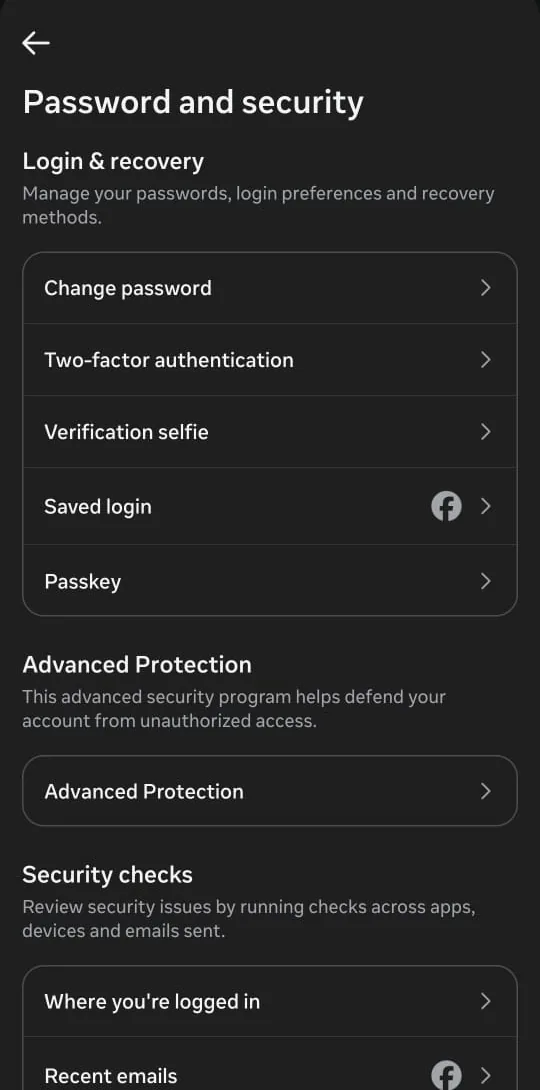
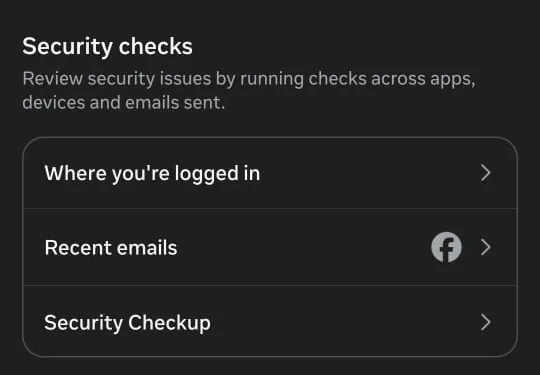
Did it work? The devices list shows only the device you’re using (and others you recognize).
Did Fix 1 solve it?
Great, you fixed it with Fix 1. Tell us it worked, or bookmark this page in case it happens again.
Fix 2: Remove the hacker’s email, phone number and two-factor method
Hackers often add their own contact details or second factor so they can reset the password again later.
- In security or personal details settings, review every email address and mobile number. Remove any that aren’t yours.
- Make your own email and phone the primary contacts.
- Open Two-factor authentication. If you don’t recognize a method, such as an unknown phone or authenticator, remove it and set up your own.
- Save fresh recovery codes somewhere safe.
Did it work? Only your own email, phone and two-factor methods are listed.
Did Fix 2 solve it?
Great, you fixed it with Fix 2. Tell us it worked, or bookmark this page in case it happens again.
Fix 3: Remove unknown apps, extensions and admins
Connected apps and browser extensions can keep access even after a password change.
- Open Settings & privacy > Settings, scroll to Your activity, and tap Apps and websites.
- Each app shows the date it was added and whether it’s Active or Expired. Tap any app you don’t use or recognize and remove it. Pay most attention to Active ones.
- Tap View removed apps and websites to check nothing was removed that you rely on (and nothing odd was added and removed).
- On your computer, review browser extensions and remove any you didn’t install on purpose.
- If you manage Pages or groups, check the admin list and remove people you don’t know.
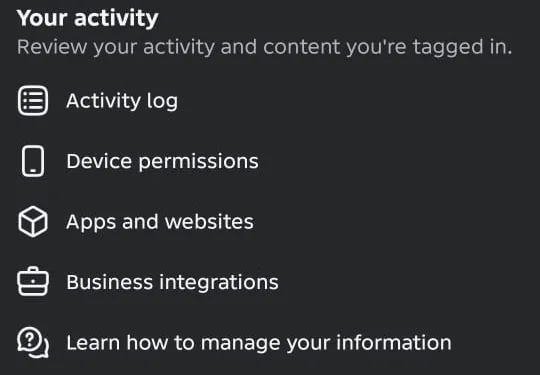
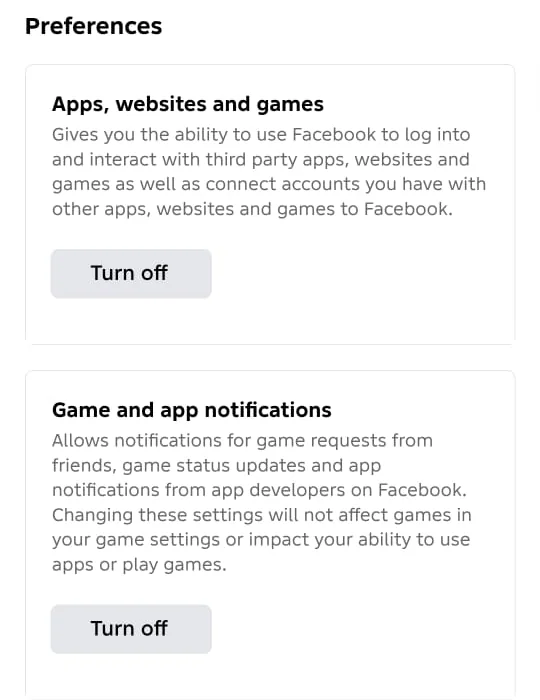
How Facebook explains it on that screen: an app can always see your public information, but it only gets non-public information if you share it when you log in with Facebook. If you haven’t used Facebook to log in to an app for 90 days, its access to your non-public information expires and the app changes from Active to Expired. Even then, the app may still hold information you shared while it was Active. To stop all logins with Facebook, use Preferences > Apps, websites and games > Turn off at the bottom of the same screen; only do this if you don’t use Facebook to sign in anywhere.
Did it work? Only apps, extensions and admins you trust remain.
Did Fix 3 solve it?
Great, you fixed it with Fix 3. Tell us it worked, or bookmark this page in case it happens again.
Fix 4: Undo changes and report what the hacker posted
Scam posts, messages and Marketplace listings in your name can hurt friends and your account’s standing.
- Check your profile name, photo and birthday and correct anything that was changed.
- Delete posts, stories, comments and Marketplace listings you didn’t make.
- Open Messenger and look for messages you didn’t send. Warn the people involved.
- Use the Check what the hacker may have done table below for the full list.
Did it work? Your profile looks as you left it and friends confirm messages have stopped.
Did Fix 4 solve it?
Great, you fixed it with Fix 4. Tell us it worked, or bookmark this page in case it happens again.
Fix 5: Locked out? Start Meta’s official recovery at facebook.com/hacked
facebook.com/hacked is the link Meta itself gives for recovering a hacked account, and Meta’s login help says to visit it on a device you’ve used to log into Facebook before. It walks you through securing the account based on what happened.
- On a phone or computer you’ve used for Facebook before, type facebook.com/hacked into the browser yourself.
- You should see Find your account, with a note that you’ve indicated your account was hacked and need to identify yourself. (If you open it by mistake, the note has a cancel this process link.)
- Enter the mobile number or email address on the account, then click Continue. Some versions may first ask what happened; pick the option that matches.
- Follow the steps. Facebook may send a code to a contact method on the account, or ask you to confirm your identity.
- Enter any code into Facebook yourself. Don’t forward it to anyone.
On our test computer in October 2026, facebook.com/hacked opened Find your account directly (the address changes to facebook.com/login/identify). Meta also offers an Account Recovery Hub (external site, opens in a new tab) covering Facebook, Instagram and Threads. In late 2025 Meta said it had launched a central support area in its iPhone and Android apps.
Did it work? You’re asked to create a new password and review your security settings, then go back to Fix 1–4.
Did Fix 5 solve it?
Great, you fixed it with Fix 5. Tell us it worked, or bookmark this page in case it happens again.
Fix 6: Prove it’s you: video selfie or ID (and how to tell a genuine request)
When the hacker has changed every contact method, Meta needs another way to confirm you own the account. Meta says its optional video selfie compares your face with your profile pictures and that the facial data is deleted afterwards, whether or not there’s a match.
- During recovery, when asked where to send a code, look for an option such as No longer have access to these? (wording varies).
- Enter a new email address or phone number you can use now.
- Check the request is genuine: a real identity check appears inside the Facebook app or on facebook.com, during a recovery you started. It never arrives as a message from a person, a WhatsApp chat, or a link from a “support agent” in comments.
- If offered, record the video selfie following the on-screen guidance: good light, face visible, no sunglasses or hat.
- If asked for ID, upload it only through Facebook’s own screen, never by email or chat to a person.
- Wait for Facebook to contact you at the new email or number. Avoid submitting again and again; it doesn’t speed things up.
Which IDs Meta accepts, and tips for date of birth and security questions, are in confirm your identity. Meta has said the video selfie option has rolled out in stages by region (as of its March 2025 update it was launching in the UK, the EU and South Korea), so not every account sees it. Because it compares against your profile photos, accounts without clear photos of your face may be offered different options.
Did it work? You receive a message or email from Facebook letting you set a new password.
Did Fix 6 solve it?
Great, you fixed it with Fix 6. Tell us it worked, or bookmark this page in case it happens again.
Fix 7: A Page or business assets were taken over
Pages are managed through the personal profiles of their admins, so recover your profile first, then follow the Page steps.
- Recover your personal account first (Paths A–C).
- Then follow Facebook Page hacked or lost admin access, which covers Meta’s steps for Pages: checking whether an admin removed you, securing other admins’ profiles, and cleaning up access.
Did it work? You can manage the Page again, and no unknown people have access.
Did Fix 7 solve it?
Great, you fixed it with Fix 7. Tell us it worked, or bookmark this page in case it happens again.
Remove saved logins from old or shared devices
Meta says that if a device or browser has saved login info, it can open Facebook without your password. Removing it means a password is needed next time on that device or browser. Our advice: do this for any lost, sold or shared device once your account is safe.
- Computer: click your profile picture (top right) > Settings & privacy > Settings > Accounts Center > Password and security > Saved login, then select the saved login info you want to remove.
- Android or iPhone app: tap Menu (top left) > Settings & privacy > Settings > Password and security > Saved login, then select the saved login info you want to remove.
- Mobile browser and Facebook Lite: tap Menu (top right), scroll down and tap Settings & Privacy > Settings > Password and security > Saved login, then select the saved login info you want to remove.
- iPad app: tap Menu (bottom right), scroll to the bottom and tap Settings & privacy > Settings. Below Account, tap Password and Security > See all next to Where you’re logged in, tap Options next to the device or browser, then Log out.
- Don’t see it? Meta says not everyone can access this setting in Meta Account or Accounts Center yet. Computer: go to Settings > Security and Login, click Edit next to Save your login info, and select the device or browser to remove. Android or iPhone: go to Settings > Password and Security (below Account), tap See all next to Where you’re logged in, tap the device or browser, then tap Log Out.
Tell your friends (copy this message)
Send this by text, WhatsApp or another account so friends don’t fall for messages sent in your name:
If the hacker posted or messaged from your account, you can also report those messages so Facebook can remove them.
Check what the hacker may have done
Once you’re back in, look around carefully. Hackers often try to make money from an account or keep a way back in.
| Check | Where to look (names vary) | Why |
|---|---|---|
| Contact details | Facebook security settings (Accounts Center in recent versions) | Remove any email or phone that isn’t yours |
| Where you’re logged in | Meta calls it the Where you’re logged in section of your Settings | Select any device or location you don’t recognize and log it out |
| Two-factor methods | Two-factor authentication settings | A hacker may add their own phone or authenticator |
| Apps and websites | Settings & privacy > Your activity > Apps and websites (Fix 3) | Remove apps you don’t recognize |
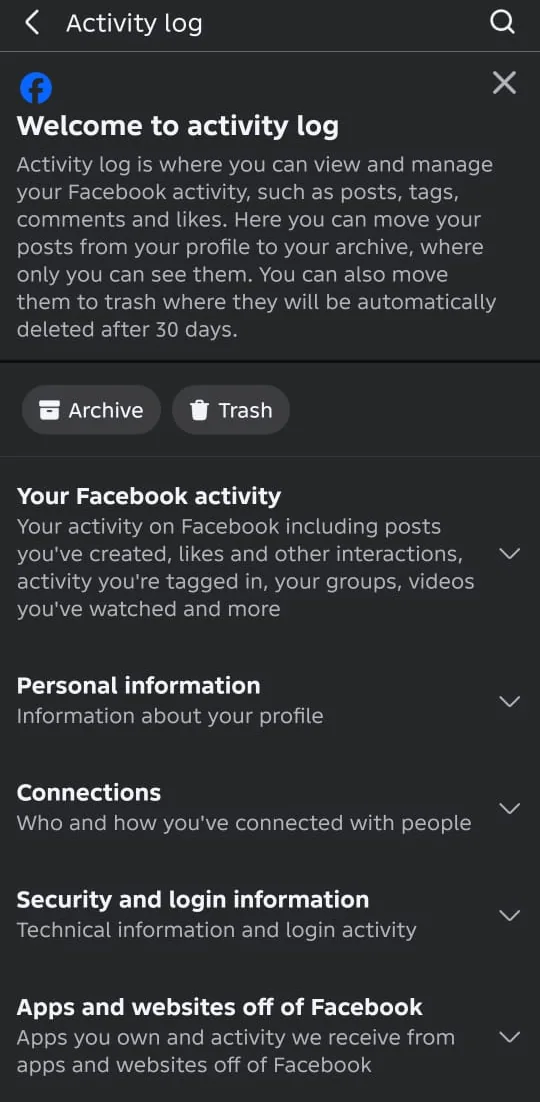
| Posts, comments and likes | Activity log (Settings & privacy > Your activity > Activity log), under Your Facebook activity | See everything posted, liked or commented from your account, including by the hacker |
| Messages and Marketplace | Messenger, Marketplace listings | Delete scam messages and listings; warn people who were contacted |
| Pages, groups and business tools | Pages you manage, Meta Business settings | Remove admins you don’t know |
| Payments and ads | Payment settings, ad account billing, your bank statements | Remove unknown cards; dispute charges with your bank |
| Linked accounts | Accounts Center or linked-accounts settings | A hacker may link their own Instagram or remove yours; unlink anything that isn’t yours |
| Your email account | Your email provider’s security page | Look for forwarding rules or filters the hacker added |
Facebook’s Activity log lets you view and manage posts, tags, comments and likes. You can move a post to your Archive, where only you can see it, or to Trash, where Facebook says it is automatically deleted after 30 days. That gives you a window to restore a post you removed by mistake.
Messages you might see (reported wording; yours may differ)
These are the messages as people report seeing them. The exact wording on your screen can differ by app version, language and region, so match the meaning, not every word.
Your email address was changed / Your Facebook password was changed- What it usually means
- Meta says it emails you when an email address or phone number is added or removed or your password is changed. When the email is changed, the message to your previous address includes a special link to reverse the change.
- What to do
- Check the email is genuine, then look for a way to secure your account or reverse the change, and start at facebook.com/hacked. Check the email is genuine first (Recovery scams).
Login from a new device- What it usually means
- Someone, possibly you, logged in from somewhere new.
- What to do
- If it wasn’t you, change your password and log out of other sessions (Fix 1).
Confirm your identity / Upload a video selfie- What it usually means
- Usually Meta’s identity check during a recovery you started.
- What to do
- Complete it only inside Facebook during a recovery you started (Fix 6).
We suspended your account- What it usually means
- Facebook may have acted on activity the hacker carried out.
- What to do
- Meta says you can appeal a suspension within 180 days by logging in. Appeal promptly and explain that the account was hacked — see account disabled or suspended.
How to know it worked
- You can log in with a new password that only you know.
- Only your own email addresses, phone numbers and two-factor methods are on the account.
- The devices list shows only your devices.
- Unknown apps, Page admins and payment methods have been removed.
- Friends confirm they’ve stopped receiving strange messages from you.
- Your email account is also secured with a new password and two-step verification.
Still not working? Your next steps
- Repeat the facebook.com/hacked steps from a device and network you’ve used Facebook on before.
- Check the original email address for Facebook’s security notices; some include a way to secure the account.
- Use Meta’s Account Recovery Hub (external site, opens in a new tab) for the latest official options.
- If your account shows a suspension or disabled notice, follow account disabled or suspended.
- If you paid a “recovery service” or shared a code or ID with someone, follow what to do if you were scammed.
Official help routes
SocialAppFix can’t see or change your account. For account decisions, recovery and appeals, only the platform’s own tools can help. These links go to the official sites.
- Recover a hacked account: facebook.com/hackedFacebook (external site, opens in a new tab)
- Meta Account Recovery HubMeta (external site, opens in a new tab)
- Recover your Facebook account if you were hackedFacebook Help Center (external site, opens in a new tab)
- Recover a hacked Facebook Page you manageFacebook Help Center (external site, opens in a new tab)
- Check if an email is really from FacebookFacebook Help Center (external site, opens in a new tab)
Helping someone else, or is it a fake account?
- Helping a parent, partner or friend? Meta recommends helping them visit its Account Recovery (external site, opens in a new tab) page to find the right solution, and helping them use the device they usually use to log into Facebook, so do it on their phone or computer, not yours. See Meta’s page on helping someone else recover their account (external site, opens in a new tab). Our advice: let them type their own password and codes; don’t ask them to share them with you.
- Someone made a fake profile pretending to be you (but your own account is fine)? That’s an imposter account, not a hack. See Someone made a fake Facebook account of you for Meta’s reporting steps.
- A Page you manage was taken over? See Facebook Page hacked or lost admin access.
Frequently asked questions
How do I remove saved login info on Facebook?
On a computer, Meta says to go to Settings > Accounts Center > Password and security > Saved login (on Android or iPhone: Settings > Password and security > Saved login) and select the saved login info to remove. If you don’t see it, go to Settings > Security and Login and click Edit next to Save your login info. After that, a password is needed on that device or browser.
Will Facebook delete my hacked account?
It can. Meta says it may disable or delete an account that appears hacked or compromised if it can’t confirm ownership after a year. Start recovery at facebook.com/hacked as soon as you can.
Can I recover a Facebook account for a friend or family member?
Meta recommends helping them visit its Account Recovery page and use the device they usually log in with. If they’re medically incapacitated and can’t use Facebook, Meta says it might be able to help you remove the account, or deactivate it instead if their condition is reversible, so they can reopen it when they recover. If they’ve passed away, Meta says to report the profile to be memorialized, which helps keep it secure by preventing anyone from logging into it.
How do I memorialize the Facebook account of someone who passed away?
Meta says its policy is to memorialize an account if a valid request is received. You request it through Meta’s memorialization request form (external site, opens in a new tab). Meta also says it can’t give anyone the login information for someone else’s account, even in these circumstances, and that logging into another person’s account is always against its policies. Facebook friends with the correct documentation may instead request removal (external site, opens in a new tab) of a loved one’s account. Full steps: Facebook memorialized accounts.
How long does it take to recover a hacked Facebook account?
Meta doesn’t publish a fixed timeframe. Recovery can be quick if you still have your email or phone; identity reviews can take longer. Meta reported in late 2025 that its hacked-account recovery success had improved in the US and Canada.
Can I call Facebook to recover my hacked account?
Be very careful with any phone number claiming to be Facebook support; fake numbers are a common scam. Meta has a help page about phone support availability. Use facebook.com/hacked and the tools inside Facebook.
Should I pay someone who says they can recover my account?
No. Nobody outside Meta can access its systems, and Meta’s recovery tools are free. People who charge, or ask for your codes or ID, are scammers.
The hacker turned on two-factor authentication. Can I still get back in?
Use facebook.com/hacked and the identity options Facebook shows, such as giving a new email or phone and confirming your identity. Once in, remove their two-factor method and add your own.
Will my friends know I was hacked?
Only if the hacker contacted them or posted publicly. Tell them yourself using the template above so they don’t fall for scam messages.
How do I stop it happening again?
Use a unique password, turn on two-factor authentication (an authenticator app or passkey is stronger than SMS), save recovery codes, keep your contact details current, and never type your password into a page you reached from a link.
Did this solve your problem?
Your answer stays in your browser — nothing is sent or stored. The “tell us” link opens your own email app.
Out of date or didn’t work? Email us — never include passwords or codes.
Sources and how we checked this guide
We base steps on the platforms’ own help pages and the phone makers’ official guides. Menu names change often and can differ by device, app version and region. Where a platform page could not be independently read, we link it so you can check the current wording yourself.
- Remove saved login info from your Facebook account (external site, opens in a new tab)
- Facebook’s policies on disabling or deleting hacked, unused or unconfirmed accounts (external site, opens in a new tab)
- How do I secure a hacked account? (Meta Business Help) (external site, opens in a new tab)
- Change or reset your Facebook password (external site, opens in a new tab)
- Recover your Facebook account if you can’t access your account email address or mobile phone number (external site, opens in a new tab)
- Recover your Facebook account if you were hacked (external site, opens in a new tab)
- Imposter accounts (external site, opens in a new tab)
- Help someone else recover their account (external site, opens in a new tab)
- Reporting a deceased person or an account that needs to be memorialized (external site, opens in a new tab)
- Where you’re logged in (external site, opens in a new tab)
- Keep your Facebook profile secure (external site, opens in a new tab)
- Recover your Facebook account if you can’t log in (external site, opens in a new tab)
- Recover a hacked account (external site, opens in a new tab)
- My personal Facebook account is suspended or disabled (external site, opens in a new tab)
- facebook.com/hacked – Recover a hacked account (external site, opens in a new tab)
- Account Recovery Hub – Facebook, Instagram, Threads (external site, opens in a new tab)
- Recover your Facebook account if you were hacked (external site, opens in a new tab)
- Recover a hacked Facebook Page you manage (external site, opens in a new tab)
- Check if an email is really from Facebook (external site, opens in a new tab)
- Protect yourself from phishing on Facebook (external site, opens in a new tab)
- Phone support availability on Facebook and other Meta Company Products (external site, opens in a new tab)
- Making it Easier to Access Account Support on Facebook and Instagram (Dec 2025, updated Mar 2026) (external site, opens in a new tab)
- Testing New Ways to Combat Scams and Help Restore Access to Compromised Accounts (2024, updated 2025) (external site, opens in a new tab)
- Cybersecurity Awareness Month: Helping Older Adults Avoid Online Scams (Oct 2025) (external site, opens in a new tab)
Last reviewed 20 October 2026 by the SocialAppFix editorial team against the sources above. Next scheduled review: 18 January 2027. How we write and review guides.
What changed
- 22 October 2026: Added removing saved login info, from help/1706513649379207.
- 22 October 2026: Added Meta’s policy on disabling or deleting hacked, unused or unconfirmed accounts, from help/3434203120011796.
- 22 October 2026: Updated helping someone else recover their account, and added what Meta says for incapacitated or deceased account holders and how to request memorialization, from help/162166840513454 and help/150486848354038.
- 22 October 2026: Updated the facebook.com/hacked steps to match what the page shows now (Find your account, mobile number or email), from an owner screenshot.
- 22 October 2026: Added Meta’s Guided Help tool link for hacked profiles (from business/help/583427765324458).
- 22 October 2026: Added Activity log (Archive, Trash, 30-day deletion) to the post-recovery checklist, with a screenshot.
- 22 October 2026: Added the exact Apps and websites route, Facebook’s explanation of Active and Expired apps, and screenshots (Android).
- 22 October 2026: Added the Meta Account > Login and security name some accounts see (owner screenshot, iPhone).
- 22 October 2026: Added screenshots of Password and security and its Security checks (Where you’re logged in, Recent emails) from an Android phone.
- 21 October 2026: Page recovery moved to the new Page hacked guide.
- 20 October 2026: Menu position per device confirmed: iPhone from Meta’s iPhone steps (owner-supplied), Android from owner screenshots.
- 20 October 2026: Change password screen fields, password rule and “Log out of other devices” option confirmed from an owner screenshot (Android).
- 20 October 2026: Confirmed Meta’s in-app Change password path.
- 20 October 2026: Added Meta’s official email domains and confirmed the Accounts Center > Password and security path.
- 20 October 2026: Added Meta’s confirmed list of hacking signs, the reverse-email-change link sent to your previous address, the “Where you’re logged in” settings name, and advice for helping someone else.
- 20 October 2026: Confirmed Meta’s instruction to use facebook.com/hacked from a device you’ve logged in on before.
- 20 October 2026: First published.
- 20 October 2026: Editorial audit corrections applied.
SocialAppFix is an independent guide and is not affiliated with or endorsed by Meta or Facebook. We never ask for passwords, login codes or payment to fix an account.