Quick answer
Open Your listings (in Marketplace, under your account or selling section) and check each item’s status. Pending generally means it hasn’t gone live yet — wait before reposting. Rejected or removed usually means Facebook believes it breaks the Commerce Policies: read the reason, fix or remove the item, and use Request review only if you think it was a mistake. If it’s live but buyers can’t find it, check its location, category and price, renew it if offered, and ask a friend to search for it. Never pay for “listing approval” services.
Is it a different Marketplace problem?
Does this match what you see?
- Your new listing shows as pending and doesn’t appear to buyers.
- Facebook says your listing was rejected or removed, sometimes mentioning the Commerce Policies.
- The listing shows as active to you, but friends can’t find it when they search.
- Your listing disappeared from Your listings or vanished from search after a few days.
- Buyers say they messaged you, but you can’t see their messages.
- You can’t reply to a buyer, or messages to sellers won’t send.
iPhone & iPadAndroidComputer (browser)
Where listing status and review options appear can change between app versions and differ by country. Facebook Marketplace is not offered everywhere.
Do you need the new Seller app?
In July 2026 Meta introduced Seller, a standalone app for Marketplace sellers with tools for creating and managing listings and a buyer inbox organized by item. Meta said it was available on the App Store for US users 18 and older, and that items created in Seller appear on Marketplace.
You don’t need it: selling still works directly in Facebook. If you do use Seller, the same Commerce Policies and listing statuses apply, so the fixes in this guide still help.
Why this happens: the possible causes
Your listing’s status is the single most useful clue. Find it first, then use the matching row.
| Status or symptom (as commonly shown) | What it may mean | What to do |
|---|---|---|
| Pending | The listing hasn’t gone live yet (commonly described as being checked) | Wait before reposting |
| Rejected / under Needs attention | Meta says it rejects listings that don’t follow the Commerce Policies or Community Standards (for example counterfeit items) | See details, fix or request a review |
| Removed (after being live) | Taken down later, often for a policy reason or a report | Read the reason |
| Active, but buyers can’t find it | Location, category, price or search factors | Improve visibility |
| Gone from Your listings | Expired, sold, deleted, or removed | Check and renew |
| Buyer messages missing | Messages filed under Marketplace or message requests | Find seller messages |
| Posted to a buy-and-sell group but not on Marketplace | Group posts and Marketplace listings can be separate. Facebook’s own Marketplace profile notes that listings in private groups may not be visible to buyers | In Your listings, if the item shows a List on Marketplace button, tap it. Also check the group’s rules |
- The listing is still in reviewCheck this first
New listings can be checked before they appear. Reposting the same item while it’s pending can create duplicates, which may make things worse.
- It breaks — or appears to break — the Commerce PoliciesCheck this first
Meta publishes Commerce Policies setting out what can’t be sold on Facebook. Items in restricted categories, listings that don’t describe a physical item for sale, or photos and text that look like something prohibited can be rejected — sometimes by mistake.
- Buyers are searching outside your areaCheck this first
Marketplace shows items based on location. If your listing’s location is wrong, or buyers are searching a different radius, it may not appear for them.
- Category, title or price make it hard to findPossible
A vague title, the wrong category, or missing details can make a listing less likely to show up in search results.
- The listing expired or was marked as soldPossible
Older listings may need renewing, and items marked as sold or pending sale may stop showing to new buyers. Meta says listings inactive for two years or more may be deleted (see below).
- Your Marketplace access or account is restrictedLess likely
If Meta has limited your Marketplace access, your listings may not show at all. You’ll usually see a notice about it.
Try these 60-second checks first
- Open Your listings and read the exact status of the item.
- Check your notifications, email and any support or account-status area Facebook shows you for a message about the listing.
- Make sure the listing’s location matches where you are selling.
- Ask a friend nearby to search for the item’s title on Marketplace.
How to fix it, step by step
Work through these in order. They start with the quickest, safest checks and only move to steps that sign you out or remove data later.
- Fix 1: Find your listing and check its status
- Fix 2: Pending? Give it time and don’t repost
- Fix 3: Rejected? Find out why, then fix it or request a review
- Fix 4: Edit your listing (or delete it, or mark it sold)
- Fix 5: Live but invisible? Check location, category and details
- Fix 6: Check what buyers see
- Fix 7: Buyer messages not showing, or can’t reply?
Fix 1: Find your listing and check its status
Everything else depends on the status. Facebook usually shows it on the listing itself in your selling area.
iPhone & iPad
- Open Facebook and go to Marketplace.
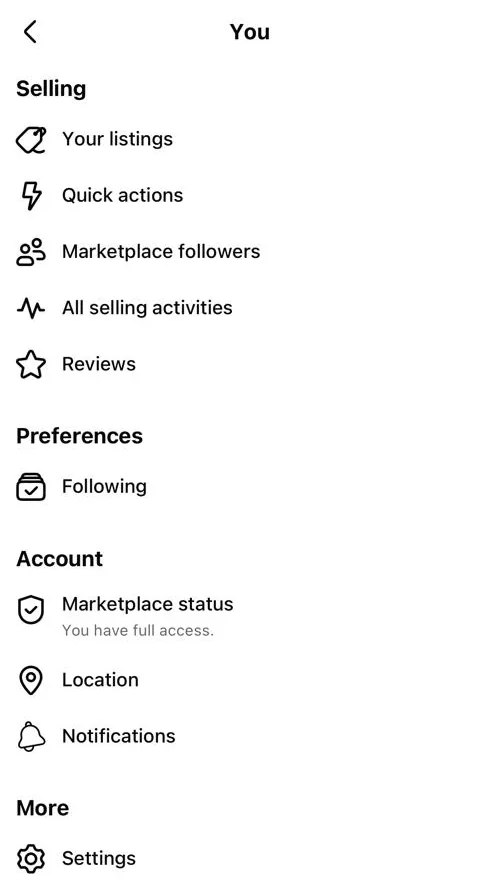
- Tap ⋯ at the top right, then More options, then Your listings (under Selling). The Selling screen also has a Your listings tab.
- Find the item and read its status line — for example active, pending, sold or a notice.
- Tap the listing to see any details or a See details link.
Android
- Open Menu (☰) and tap Marketplace (tap See more if it isn’t listed).
- Tap ⋯ at the top right of Marketplace, then Marketplace profile.
- Under your listings, tap the Your listings link. (The profile says you can manage listings from the Your listings page.)
- Read the status line under each item, for example Available. Tap ⋯ next to an item for its options, or tap the item for details.
Computer (browser)
- Go to facebook.com/marketplace.
- In the left column, choose Selling or Your listings (names vary).
- Check each item’s status and open it for details.

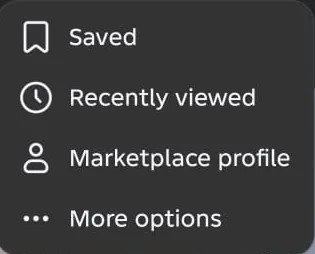
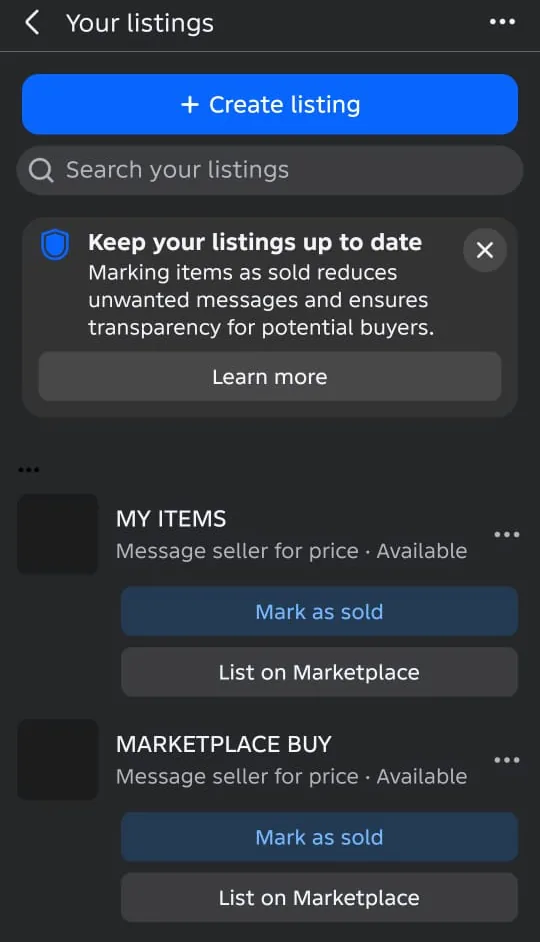
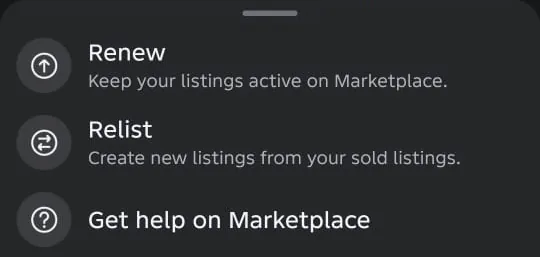
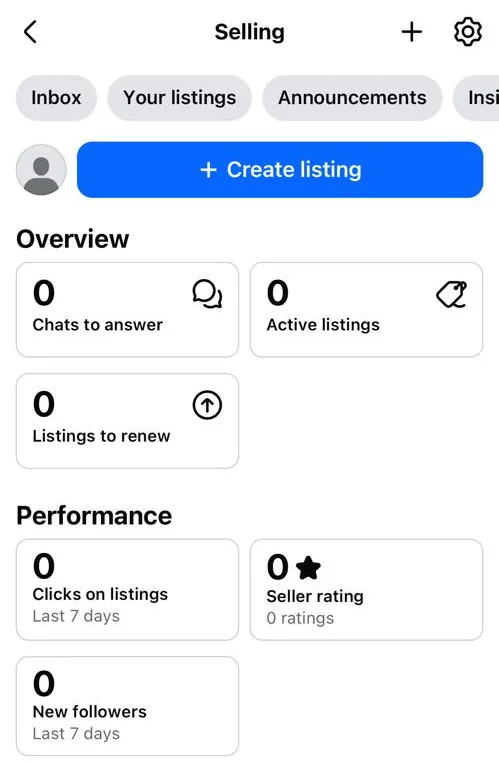
Your listings also has a ⋯ menu with Renew (“Keep your listings active on Marketplace”) and Relist (“Create new listings from your sold listings”). If an older listing has dropped out of sight, Renew is worth trying.
Did it work? You know whether the item is pending, rejected, removed, expired or active.
Did Fix 1 solve it?
Great, you fixed it with Fix 1. Tell us it worked, or bookmark this page in case it happens again.
Fix 2: Pending? Give it time and don’t repost
Pending means the listing hasn’t finished being checked. Meta doesn’t publish a fixed review time, and creating copies of the same item can look like spam.
- Leave the listing as it is for now.
- Check back later the same day and the next day.
- Don’t delete and repost repeatedly. If it’s still pending after a long time, edit it once to make sure the details are clear and accurate.
Did it work? The status changes to active, or you receive a decision explaining why it wasn’t approved.
Did Fix 2 solve it?
Great, you fixed it with Fix 2. Tell us it worked, or bookmark this page in case it happens again.
Fix 3: Rejected? Find out why, then fix it or request a review
Meta says it may reject a listing that doesn’t follow its Commerce Policies or Community Standards — for example a counterfeit item — and that listings are reviewed when its systems detect a potential violation or when someone reports them. If you think it’s a mistake, you can request a review, and Meta says it restores the listing if it finds it made a mistake.
- Find out why (Meta’s path): tap your profile photo to open your profile, tap the ⋯ (three dots) at the top right of your profile to open Profile Settings, and scroll through Profile Settings to the More options section and tap Profile status (if you can’t find it, type “Profile status” into Search settings at the top of Settings and privacy > Settings), then Marketplace under Profile features (Meta’s help page calls this section Extra features). Removed posts and listings are also counted at the top of the page under Issues with your content > Content removed, and History shows past decisions.
- Select Your listings, click the listing below Needs attention, then click See details to read the reason. (In the iPhone and Android apps, tap Some of your listings need your review, select the listing, then See details.)
- Compare the reason with the Commerce Policies (linked below). If the listing really broke a rule, delete it — don’t disguise the item with different wording or photos.
- To request a review (Meta’s path): Profile status > Marketplace (under Profile features) > click See what happened or See issue and select the listing > Request review. In the iPhone and Android apps, if you’re eligible to remove your warning, tap Fix it now, then Request review.
- Submit once. Meta says you can’t request a second review of the same listing.
- If the problem was only presentation (a confusing photo, unclear title), recreate it with clear photos of the actual item and an accurate description.
No Request review button? Meta gives three reasons: it’s been more than 180 days since the listing was rejected, you’ve already requested a review, or a review isn’t available for the rule you broke. Repeated rule-breaking can also put your whole Marketplace access at risk; for a first offense you may be able to remove that warning, but the listings involved won’t be restored — see Marketplace not showing.
Did it work? After a successful review the listing is restored, or your replacement listing goes live without a Needs attention notice.
Did Fix 3 solve it?
Great, you fixed it with Fix 3. Tell us it worked, or bookmark this page in case it happens again.
Fix 4: Edit your listing (or delete it, or mark it sold)
Fixing a wrong price, a confusing title or a missing detail is often quicker than starting again. These are Meta’s steps.
iPhone & iPad
- Tap Menu (top left; on iPad, bottom right), then Marketplace (under See more if needed).
- Tap Profile, then Your listings.
- Tap Options next to the listing, then Edit listing.
- Make your changes, then tap Save.
Android
- Tap Menu, then Marketplace (under See more if needed). Meta’s steps put Menu at the top left; on the Android phone we checked, it was at the top right.
- Tap Profile, then Your listings.
- Tap Options next to the listing, then Edit listing.
- Make your changes, then tap Save.
Computer (browser)
- From your Feed, click Marketplace in the left menu (under See more if you don’t see it).
- Click Selling, then Your listings.
- Click Options on the listing, then Edit listing.
- Edit the details, then click Update.
In a phone browser or Facebook Lite, Meta’s steps are: Menu > Marketplace > Profile (top left) > Options next to the listing > Edit post > Save. To delete a listing, use the same route but choose Delete listing (on a computer, Delete), then confirm with Delete. In a phone browser or Lite the option is Delete item. If you can’t, see Can’t delete a listing?. You can also mark it as sold or pending instead. Selling several of the same item? You don’t need to edit the quantity: Meta says buyers automatically see how many are left once there are 10 or fewer, and a single item shows “Only 1 for sale”.
Did it work? Your listing shows the updated details.
Did Fix 4 solve it?
Great, you fixed it with Fix 4. Tell us it worked, or bookmark this page in case it happens again.
Fix 5: Live but invisible? Check location, category and details
Buyers see items based on where they are and what they search. Small details can make a big difference to whether your listing appears.
- Edit the listing and confirm the location is where the item actually is.
- Choose the most accurate category.
- Use a clear title with the words a buyer would search (for example the brand and item type) — no keyword stuffing.
- Add a realistic price, a full description and clear photos.
- If Facebook offers to renew or relist an older item, use it rather than creating a duplicate.

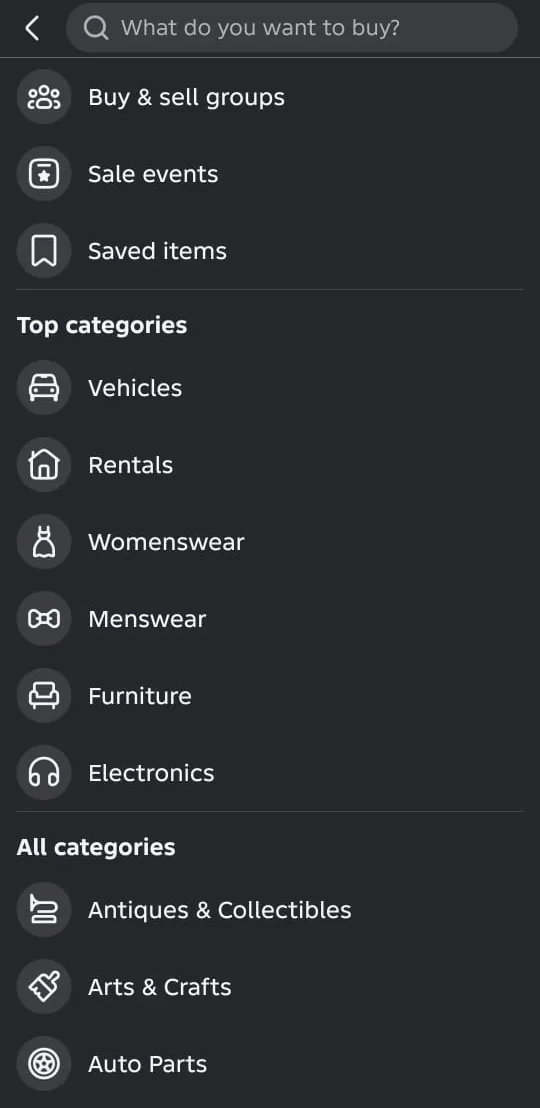
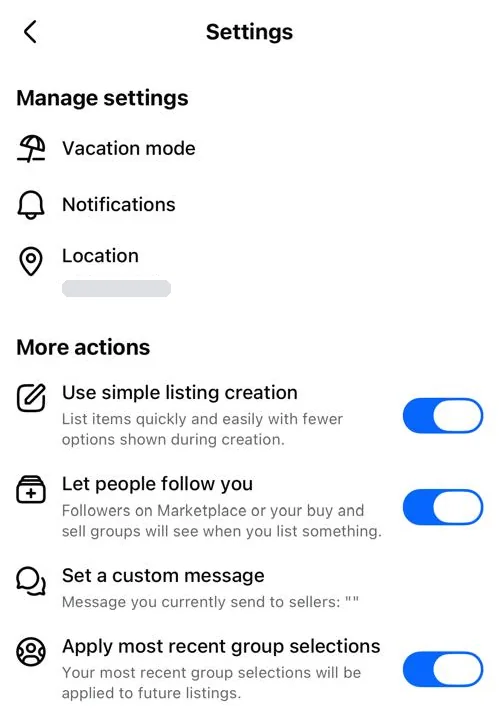
Buyers browse by category as well as by search: in the app, More (called Categories on iPhone) at the top of Marketplace opens the category list. An item in the wrong category is easy to miss. Also open Marketplace Settings (⋯ > More options > Settings) and check that Vacation mode isn’t on.
Did it work? A friend in your area can find the item by searching its title.
Did Fix 5 solve it?
Great, you fixed it with Fix 5. Tell us it worked, or bookmark this page in case it happens again.
Fix 6: Check what buyers see
Your own view of a listing isn’t always what other people see. Testing from another person’s account is the easiest way to know for sure.
- Copy the link to your listing (look for Share > Copy link).
- Ask a friend or family member nearby to open the link and to search Marketplace for the title.
- If the link opens but search doesn’t show it, focus on visibility. If the link doesn’t open for them, check the status again.
Don’t create a second Facebook account to test your listings — use someone else’s genuine account.
Did it work? Your friend can see the listing both from the link and from search.
Did Fix 6 solve it?
Great, you fixed it with Fix 6. Tell us it worked, or bookmark this page in case it happens again.
Fix 7: Buyer messages not showing, or can’t reply?
Marketplace conversations have their own inbox. Meta also lists reasons messaging can fail, such as region limits or sending too many messages.
- In the Facebook app: Menu > Marketplace > Profile > Inbox, as Meta describes.
- For every reason a Marketplace message won’t send, and what to do, see Can’t send messages on Facebook Marketplace.
Did it work? You can see and reply to the buyer’s message.
Did Fix 7 solve it?
Great, you fixed it with Fix 7. Tell us it worked, or bookmark this page in case it happens again.
Mark an item as sold, pending or available
Meta says you can mark a Marketplace listing as Shipped, Sold, Pending or Available. Marking it sold or pending is also a common reason a listing stops showing to new buyers.
| Status | When to use it | What happens |
|---|---|---|
| Sold | The sale is complete | The listing isn’t visible to anyone else on Marketplace. Buyers who messaged you get a message that it’s sold, you’re asked whether to archive the conversation, and the buyer gets a notification to rate you as a seller. |
| Pending | You’ve agreed to sell, but the sale isn’t final | Buyers who messaged you get a message that it’s pending. New buyers see it’s pending before they can message you. |
| Available | It was sold or pending and is for sale again | Buyers who messaged you before get a message that it’s available. If it was marked sold, those conversations are unarchived. |
Steps on a computer
- From your Feed, click Marketplace in the left menu, then Selling > Your listings.
- Sold: click Mark as sold next to the listing.
- Pending: go to the listing, click Options, then Mark as pending.
- Available: go to the listing, then click Mark as available.
Steps on iPhone and Android
- Tap Menu (top left), then Marketplace (under See more if you don’t see it).
- Tap Marketplace profile at the top, then Your listings.
- Sold: tap Mark as sold next to the listing.
- Pending or Available: tap the listing to open it, tap Options, then Mark as pending or Mark as available.
Steps on iPad
- Tap Menu (bottom right), then Marketplace (under See more if you don’t see it).
- Sold: Meta says to tap Options at the top, then Your listings, and tap Mark as sold below the listing.
- Available: Meta says to tap Marketplace profile at the top, then Your listings, and tap Mark as available below the listing.
- Meta’s iPad help uses two different buttons (Options and Marketplace profile) to reach Your listings. If you don’t see one, try the other. It lists Shipped, Sold and Available, with no steps for pending.
Steps in a mobile browser
- Tap Menu (top right) > Marketplace > Marketplace profile.
- Tap Selling, then Mark as sold below the listing.
- Meta’s mobile browser help only lists Shipped and Sold here, with no steps for pending or available.
Steps in Facebook Lite
- Tap Menu, then Marketplace (under See more if you don’t see it), then Marketplace profile.
- Tap Mark as sold below your listing in the Selling section, or tap Options next to the listing, then Mark as sold.
- Like the mobile browser, Meta’s Lite help only covers Shipped and Sold.
How long do Marketplace listings stay active?
Meta says you can keep a listing for as long as you’re actively selling the item, but listings inactive for two years or more may be deleted. A listing deleted for inactivity is permanently removed (title, description, photos and price) and can’t be recovered. You can download your Marketplace information at any time with the Download your information tool in your Facebook settings.
To keep a listing for longer, renew or edit it: Meta says either one resets the two-year timeframe.
- Computer: Marketplace > Selling > Your listings, then click Renew on the listing, or open its menu and click Edit listing, make your changes and click Update.
- iPhone and Android: from your Feed, tap Marketplace > Sell > Your listings, open the listing’s menu, then tap Renew on Marketplace or Edit listing.
Meta says that if the listing was boosted as an ad, the ad data may be kept separately under its advertising policies, but the listing itself is still deleted after two years of inactivity.
Can’t delete a Marketplace listing?
Meta says you can’t delete a listing when:
- An order is pending, or waiting to be accepted or declined.
- A label has been generated for it.
- The listing has sold.
You can delete a listing when it’s a single item that’s available and in stock, or a multi-quantity listing that has never received an order, and no order is waiting and no label has been generated.
If you can’t delete it, deal with the pending order first, or mark the listing as sold (external site, opens in a new tab) instead.
Things you can’t sell on Facebook Marketplace
Meta says everything listed on Marketplace must follow its Commerce Policies (external site, opens in a new tab) and the Community Standards, and that buyers and sellers must also follow the law where they are. Meta’s examples of things that can’t be listed:
- Counterfeits: anything that violates intellectual property rights, such as knockoffs, replicas of branded goods, or pirated copies of a movie.
- Unauthorized or pirated copies of copyrighted works: videos, movies, TV shows, video games, music, books and so on.
- Services (for example, house cleaning): Meta says these are only allowed on Jobs on Marketplace, which Meta says is currently a test in select US cities. See Facebook Marketplace Jobs.
- Animals and animal products, including posts about animals for adoption, except by approved pet adoption matching services.
- Medical and healthcare products, such as thermometers or first-aid kits.
- Recalled products. Not sure? Meta suggests checking the manufacturer’s website or a government site, such as the US Consumer Product Safety Commission (external site, opens in a new tab) or the EU Safety Gate (external site, opens in a new tab).
The full list in Meta’s Commerce Policies
Meta’s Commerce Policies (external site, opens in a new tab) apply to anything bought, sold or traded, even for free. They list these prohibited categories:
- Anything that breaks the Community Standards; adult products or sexually suggestive product photos
- Alcohol; tobacco and tobacco paraphernalia; drugs, drug paraphernalia and prescription products
- Weapons, ammunition and explosives; hazardous goods and materials
- Animals and animal parts; land in ecological conservation areas; human body parts or fluids
- Medical and healthcare products, including medical devices and ingestible supplements
- Real or fake documents, currency, financial instruments or virtual currency; gambling
- Downloadable digital content, digital subscriptions or digital accounts; devices for unauthorized streaming or for interfering with electronic devices
- Counterfeits and other copyright or trademark infringement; stolen goods; recalled or banned products
- Used cosmetics, or cosmetics not in their original packaging; certain vehicle parts and accessories
- Job opportunities; posts with no item for sale (such as news or humor); misleading, violent or hateful products or offers; human exploitation and sexual services
- Listings that discriminate against people because of a personal characteristic, including housing listings. Meta’s examples of what’s not allowed include “Must be under the age of 35 to purchase”.
Allowed only for approved sellers: event tickets, gift cards and vouchers, and pet adoption matching services. The Commerce Policies say services are only allowed on the WhatsApp Business app or through Appointments on Facebook or Instagram, while Meta’s Marketplace help says services are only allowed on Jobs on Marketplace.
Brands: Meta says rights owners can use Brand Rights Protection to find and report trademark violations, counterfeits and copyright infringement, including in Marketplace listings. See Meta’s help on Brand Rights Protection (external site, opens in a new tab) and intellectual property on Facebook (external site, opens in a new tab). In short, Meta says copyright protects original works such as books, music, film and art (not facts, ideas, names, titles or slogans), while a trademark protects things like a brand name, slogan or logo. See our guide to trademark and copyright on Facebook.
Meta says breaking these rules can lead to rejected or removed listings and lost access to commerce features, and that repeated violations may lead to more action on your account.
Meta says this is only a summary, and that the Commerce Policies themselves have the full, current rules. Seen a listing that breaks them? Meta has steps to report a listing or seller, or see how to report content on Facebook.
Checklist: a listing that’s more likely to be approved and found
Use this before you post, or when you edit a listing that isn’t performing. None of it guarantees approval, but it removes the most common avoidable problems.
| Check | Why it helps |
|---|---|
| The item is allowed under the Commerce Policies (what you can’t sell) | Avoids rejections and repeated policy strikes |
| Photos show the actual item, clearly, without unrelated text or images | Confusing photos can look like a different (restricted) item |
| Title says what it is — brand, item type, key detail | Matches what buyers type into search |
| Correct category chosen | Category filters affect where it appears |
| Realistic price entered | Listings without sensible prices can look suspicious |
| Location set to where the item is | Marketplace shows items near the buyer |
| Description is honest and complete, with no external links or contact tricks | Off-platform redirection can look like a scam |
| Only one listing per item | Duplicates can look like spam |
Notices and messages you might see (reported wording)
These are the messages as people report seeing them. The exact wording on your screen can differ by app version, language and region, so match the meaning, not every word.
Your listing is pending- What it usually means
- As commonly reported, the listing hasn’t gone live yet and isn’t visible to buyers.
- What to do
- Wait and avoid reposting (Fix 2).
Your listing was rejected / not approved- What it usually means
- Meta rejects listings that it finds don’t follow its Commerce Policies or Community Standards.
- What to do
- Open See details under Needs attention, fix or delete it, and request a review within 180 days if it’s a mistake (Fix 3).
This listing doesn’t follow our Commerce Policies- What it usually means
- The item or the way it’s listed appears to break the rules.
- What to do
- Check the Commerce Policies and the specific reason shown.
Shipping and checkout on Marketplace isn’t available in your location right now.- What it usually means
- Shown in Facebook’s in-app Marketplace help where shipping and checkout aren’t offered. It’s about your location, not your listing.
- What to do
- Sell the item for local pickup instead. Don’t use a VPN to change your location: it can make Marketplace show the wrong area.
Can’t send message- What it usually means
- A temporary messaging problem, a limit on your account, or the buyer is no longer reachable.
- What to do
- See Meta’s page on Marketplace messages and our Messenger guide.
Avoid Marketplace scams while you sell
When a listing has problems, sellers are more likely to trust messages offering “help”. Watch for these patterns:
- Messages claiming to be Facebook or “Marketplace support” saying your listing is suspended and asking you to click a link or pay. Check notices inside Facebook itself instead.
- Buyers asking you to share a code sent to your phone “to verify you”. That code can be used to take over an account. Never share it.
- Overpayment or “fee” stories where a buyer sends more than the price and asks for the difference back, or asks you to pay a fee to receive money.
- Requests to move off Facebook to an unfamiliar payment method or website.
If you’ve already clicked a link or shared a code, read Facebook hacked: recover your account and our guide to recovery scams.
How to know it worked
- The listing shows as active in Your listings.
- A friend nearby can find it in Marketplace search and open it.
- You can see buyer messages and reply without errors.
- No new notices about listings appear in your notifications or account-status area.
Still not working? Your next steps
- If several listings are being rejected, review the Commerce Policies carefully before posting again, and check Profile status > Profile features > Marketplace for an "at risk" warning.
- If Marketplace itself becomes unavailable, follow Facebook Marketplace not showing.
- Report a Marketplace bug if listings behave strangely and there’s no notice: on a computer, click your profile picture > Help and support > Report a problem (Meta’s steps), or in the Android app tap ☰ Menu > Help and support > Report a problem (or shake your phone on the screen with the problem) and pick it on Select product, and add a screenshot and description.
- If your account is restricted or suspended, see Facebook account disabled or suspended.
Official help routes
SocialAppFix can’t see or change your account. For account decisions, recovery and appeals, only the platform’s own tools can help. These links go to the official sites.
- What to do if your Marketplace listing is rejectedFacebook Help Center (external site, opens in a new tab)
- Marketplace access at risk, limited or suspendedFacebook Help Center (external site, opens in a new tab)
- Facebook Commerce PoliciesMeta (external site, opens in a new tab)
- Marketplace listing rulesFacebook Help Center (external site, opens in a new tab)
- Can’t send messages on Facebook MarketplaceFacebook Help Center (external site, opens in a new tab)
- Facebook Marketplace helpFacebook Help Center (external site, opens in a new tab)
Frequently asked questions
How long do Facebook Marketplace listings last?
Meta says you can keep a listing as long as you’re actively selling, but listings inactive for two years or more may be deleted permanently. Renewing or editing a listing resets the two-year timeframe.
Can businesses sell on Facebook Marketplace in Europe?
Meta’s Commerce Policies say Marketplace is intended for consumer-to-consumer sales, and that businesses and people acting in a business capacity in the European Economic Area (EEA), the Philippines and India may face restrictions, including suspended Marketplace access or removed listings, if they try to sell there. Meta also says the law in some countries, such as Germany, Austria and Switzerland, requires people selling for business purposes to provide identity information, including name, street address, email, registration number and/or VAT number. If you’re not sure whether that applies to you, Meta suggests asking a qualified local lawyer.
What can’t you sell on Facebook Marketplace?
Meta’s examples include counterfeits and pirated copies, services (only allowed on Jobs on Marketplace), animals and animal products (except approved pet adoption matching services), medical and healthcare products like thermometers and first-aid kits, and recalled products. The Commerce Policies have the full rules.
How do I mark an item as sold on Facebook Marketplace?
On a computer, Meta says to go to Marketplace > Selling > Your listings and click Mark as sold next to the listing. On iPhone or Android, tap Menu > Marketplace > Marketplace profile > Your listings, then Mark as sold. Once it’s sold, it isn’t visible to anyone else on Marketplace, and buyers who messaged you are told it’s sold.
Can I undo marking a Marketplace item as sold?
Yes. Meta says you can change a sold or pending listing back to available: Marketplace > Selling > Your listings > Mark as available. Buyers who messaged you before are told it’s available again.
Why is my Marketplace listing stuck on pending?
Pending generally means the listing hasn’t gone live yet. We found no fixed time for this in any official source we could read. Avoid deleting and reposting the same item, which can create duplicates.
Why was my Marketplace listing removed?
Meta says it rejects listings that don’t follow its Commerce Policies or Community Standards, and reviews listings when its systems detect a possible violation or when someone reports them. See the reason under Profile status > Marketplace > Your listings > Needs attention > See details.
Other people sell the same item. Why was mine rejected?
Meta’s answer: if you see similar listings, you can request a review if you believe it made a mistake, or report a listing you think breaks the rules. Similar listings staying up doesn’t mean yours broke no rule — they may simply not have been reviewed yet.
Why can’t I request a review of my rejected listing?
Meta lists three reasons: more than 180 days have passed since the rejection, you’ve already requested a review, or a review isn’t available for the rule you broke.
Why can’t buyers see my listing?
Check that it’s active, that the location and category are correct, and that the title uses words buyers would search. Then ask a friend nearby to search for it.
Where are my Marketplace messages?
Look in the Marketplace inbox inside Facebook and in Messenger’s Marketplace chats and message requests. Updating both apps can help.
Can I appeal a rejected listing?
Yes, within 180 days, through Profile status > Marketplace > See what happened (or See issue) > Request review. Meta says it restores the listing if it finds it made a mistake. You can only request a review once.
Will rejected listings affect my account?
They can. Meta says it may limit or suspend Marketplace access if you break its Commerce Policies, and that it warns you when your access is at risk. Check Profile status > Profile features > Marketplace to see where you stand.
Did this solve your problem?
Your answer stays in your browser — nothing is sent or stored. The “tell us” link opens your own email app.
Out of date or didn’t work? Email us — never include passwords or codes.
Sources and how we checked this guide
We base steps on the platforms’ own help pages and the phone makers’ official guides. Menu names change often and can differ by device, app version and region. Where a platform page could not be independently read, we link it so you can check the current wording yourself.
- Intellectual Property (external site, opens in a new tab)
- Buy and sell with confidence on Facebook Marketplace (external site, opens in a new tab)
- How long do my Facebook Marketplace listings stay active? (external site, opens in a new tab)
- Edit your Facebook Marketplace listing (external site, opens in a new tab)
- Delete your Facebook Marketplace listing (external site, opens in a new tab)
- Mark an item as sold on Facebook Marketplace (external site, opens in a new tab)
- Things that can’t be listed for sale on Facebook Marketplace (external site, opens in a new tab)
- What it means if your Facebook Marketplace access is at risk, limited or suspended (external site, opens in a new tab)
- What to do if your Facebook Marketplace listing is rejected (external site, opens in a new tab)
- Commerce Policies (external site, opens in a new tab)
- Can’t send messages on Facebook Marketplace (external site, opens in a new tab)
- Marketplace (external site, opens in a new tab)
- Report That Something Isn’t Working on Facebook (external site, opens in a new tab)
- Introducing Seller, an App for Facebook Marketplace Sellers (July 2026) (external site, opens in a new tab)
- Introducing Marketplace: Buy and Sell With Your Local Community (2016) (external site, opens in a new tab)
Last reviewed 20 October 2026 by the SocialAppFix editorial team against the sources above. Next scheduled review: 18 January 2027. How we write and review guides.
What changed
- 22 October 2026: Added business-seller identity rules (Germany, Austria, Switzerland) and Brand Rights Protection, from help/809497125833105.
- 22 October 2026: Added how long listings stay active (two-year inactivity rule), from help/976748741431731.
- 22 October 2026: Added things that can’t be listed on Marketplace (Meta’s listing rules page) and the full Commerce Policies list.
- 22 October 2026: Added marking an item as sold, pending or available, from help/1680504982210398.
- 22 October 2026: Added the iPhone route to Your listings, the Selling screen and a Vacation mode check, from real iPhone screenshots.
- 22 October 2026: Confirmed the Android route to Your listings (Menu > Marketplace > ⋯ > Marketplace profile > Your listings), the Renew and Relist options, the private-groups note and the shipping-not-available message from owner screenshots, and added screenshots.
- 21 October 2026: Added the app labels from Meta’s rejected-listing page (Some of your listings need your review; Fix it now).
- 21 October 2026: Added Meta’s delete steps and when a listing can’t be deleted (help/811868760104511).
- 21 October 2026: Added Meta’s steps to edit, delete or mark a listing sold, and the multi-quantity note (help/514314075439323).
- 20 October 2026: Confirmed the Android menu route to Report a problem (☰ Menu > Help and support > Report a problem) from owner screenshots.
- 20 October 2026: Added the Android Report a problem flow (shake to report, logs choice, Select product, Send report) from owner screenshots.
- 20 October 2026: Confirmed the mobile path to Profile status (profile photo > ⋯ > Profile Settings > More options > Profile status) from the owner.
- 20 October 2026: Profile status page layout confirmed from an owner screenshot (the app labels the section Profile features; Meta’s help page says Extra features).
- 20 October 2026: From owner screenshots: where the ☰ menu sits on Android, and that the ⋯ at the top right of your profile opens Profile Settings (Profile status not yet seen in that list; owner checking further down).
- 20 October 2026: Confirmed Meta’s Report a problem steps (profile picture > Help & support > Report a problem).
- 20 October 2026: Added Meta’s exact paths to see why a listing was rejected and to request a review, the 180-day review window, the reasons a review option may be missing, and Meta’s answer about similar listings.
- 20 October 2026: Added Meta’s confirmed review, restore and Profile status details from Meta’s Marketplace help page.
- 20 October 2026: First published.
- 20 October 2026: Editorial audit corrections applied.
SocialAppFix is an independent guide and is not affiliated with or endorsed by Meta or Facebook. We never ask for passwords, login codes or payment to fix an account.